


Connect to a Snowflake cloud database.
How-to Guides → Solution Examples → Feature Examples → Business Operations Examples → DatasetDB Snowflake Example
This example provides instructions on connecting to a Snowflake database.
Download the Solution Example here:
Summary
This example provides instructions on connecting to a Snowflake database and executing queries. It enables communication between the Snowflake database and the FrameworX solution, allowing data to be published and read.
Snowflake Files
Snowflake in Datasets uses driver files that you add to the FrameworX installation. To run this example correctly, download the required files from the DatasetDB Snowflake Connector Example.zip link at the top of the page. Extract the contents into a new folder named Snowflake, with the files directly in that folder and not in a sub-folder of it. The location depends on the program that uses the files:
- Designer, and Windows solutions (.NET Framework 4.8 runtime):
C:\Program Files\Tatsoft\FrameworX\fx-10\Snowflake\ - Multiplatform solutions on Windows (.NET 10 runtime):
C:\Program Files\Tatsoft\FrameworX\fx-10\net10.0\Snowflake\ - Linux and macOS (.NET 10 runtime):
<FrameworX root>/fx-10/Snowflake/, with the folder name spelled exactly as shown.
The .NET 10 runtime uses the second and third folders and needs driver files that run on .NET 10.
The Designer lists Snowflake as a database provider only when the files are in the first folder. For a Multiplatform solution, place the files in the first folder on the computer that runs the Designer. Place them also in the second or third folder on the computer that runs the solution.
Note: This process is only available for users who installed the software using the .exe installer. The .msix installer does not allow access to the installation directory.
Technical Information
This example includes a pre-created database named Snowflake, which is not yet configured in Datasets > DBs. The user must configure it with their Snowflake account credentials.
Additionally, a table named SnowflakeTable is pre-created in Datasets > Tables and is already associated with the Snowflake database. The user only needs to specify the Snowflake table to be used after establishing the database connection.
The solution's interface provides on-screen instructions to guide the user through the process of connecting to the Snowflake database and selecting the table for interaction.
Snowflake DB Connect Instructions:

Snowflake DB Configuration Tips:

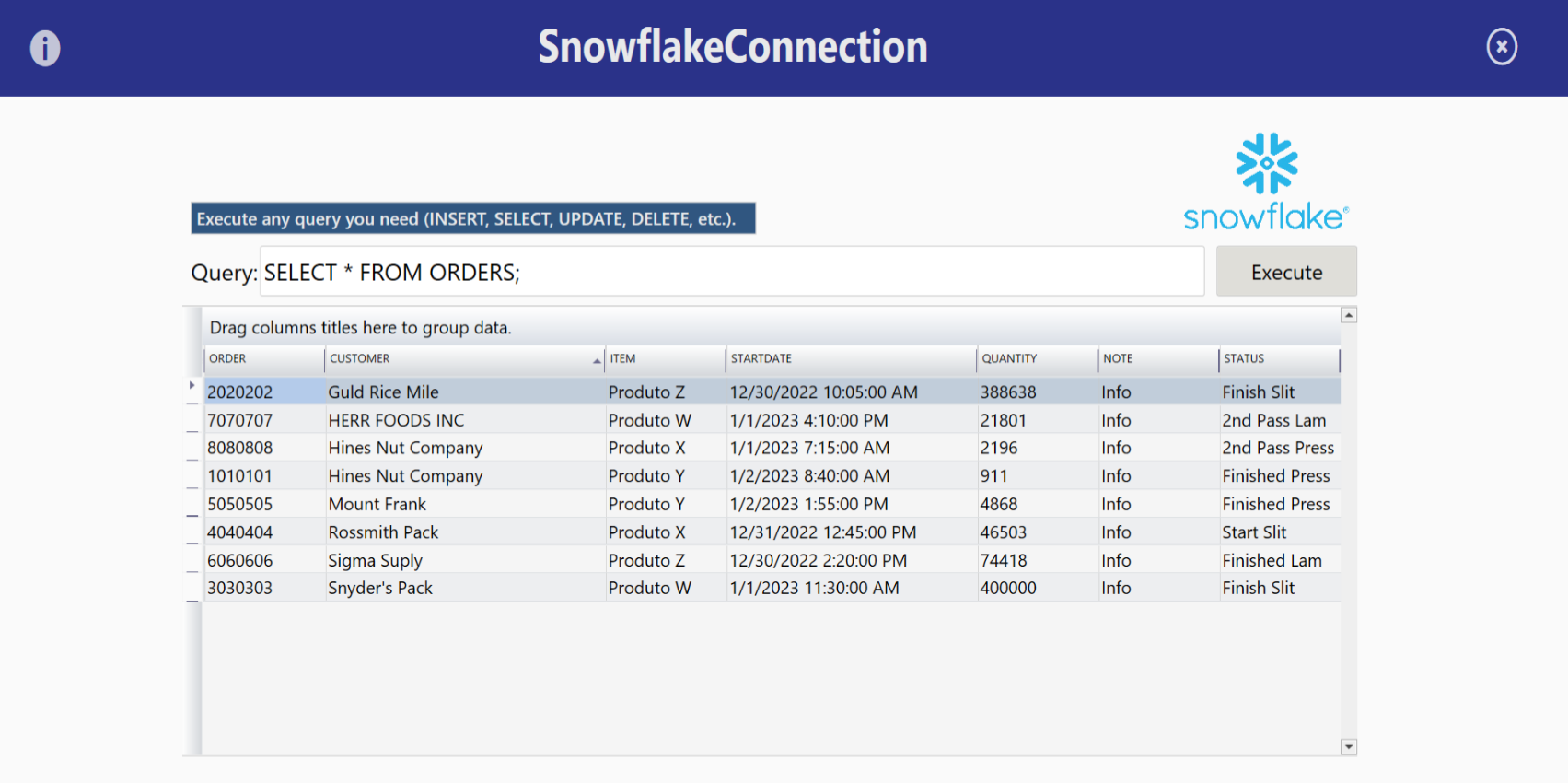
Once the database and table are configured, the user can execute any valid SQL query to interact with the selected Snowflake table.
Executing Query
When the execution button is clicked, the ExecuteQuery method in CodeBehind assigns the query from the TextBox to the SqlStatement in the dataset query and runs SelectCommandAsync to fetch data. The retrieved data populates the queryDataTable Tag, which updates the DataGrid display.
public async Task ExecuteQuery(object sender, System.Windows.Input.InputEventArgs e)
{
	@Dataset.Query.QuerySnowflake.SqlStatement = @Tag.snowflakeQuery;
	@Tag.queryDataTable = await @Dataset.Query.QuerySnowflake.SelectCommandAsync();
}
In this section...