|
Clients compatible with OPC UA specification
- Name: OPCUA
- Version 1.0.0.0
- Protocol: OPC UA
- Interface: TCP/IP
- Runtime: Multiplatform
- Configuration:
- Runtime / Startup
Overview
The Software Platform has the built-in ability to act as a OPC-UA Server. This feature is enabled just by starting the OPC UA Server module, when running a solution.
The OPC UA Server configuration sets up the server settings and secure communication parameters for OPC UA clients. It involves defining endpoints (addresses and ports), managing security policies, and handling certificates to ensure seamless and reliable data exchange. Users can adjust settings in the user interface to tailor the server’s behavior, control security, and establish the requirements for OPC UA clients to connect.
Data Elements, OPC Items
The OPC UA server automatically presents the tags defined in the solution to be accessible as OPC items from remote clients.
Not all tags will be visible. When building the tree for its data elements, the Visibility Property of the tags is verified.
The available options are:
- Private: The tag remains visible only to the local solution and its redundant pair. Use this setting to restrict the tag's visibility, ensuring that only the local solution and its backup can access the tag. Private Tags are not included in the OPC Server tree.
- Protected: The tag becomes visible to external connections for read-only operations. This setting allows external systems to read the tag's value without permitting any modifications, ensuring that the data remains unchanged. Protected Tags are included in the OPC tree, but only for read operations.
- Public: The tag becomes visible to external connections for both reading and writing. This setting provides full access to the tag, allowing external systems to both read and modify the tag's value. Public Tags are included in the OPC tree, allowing both read and write operations.
From FrameworX 10.1.6a, the Visibility of an asset folder also applies. An asset folder set to Private is hidden from the OPC UA Server together with everything under it: its tags, their members and its sub-folders, including tags that read their values from the DataHub or another Tag Provider. A folder set to Protected or Public, or left unset, leaves each tag’s own Visibility in charge. Set the folder Visibility in the Edit Asset Folder dialog: select the folder in the Asset Tree, then Edit. The OPC UA Server applies the folder Visibility when it starts.
To make the configured tags visible to the OPC Server, simply change the visibility property:
- Public: Can be read or written from OPC clients.
- Protected: Can only be read by the OPC clients.
- Private: Cannot be seen, nor read, by OPC clients
Dynamic Addressing
OPC UA clients can read and subscribe to a TagProvider path by naming it in the NodeId, with no tag configured for it in the solution. The server connects the path when a client asks for it and releases it when no client uses it. The feature is off by default.
NodeId format
- Namespace URI:
urn:tatsoft:frameworx:opcua:dynamic(usensu=or the index from the server's NamespaceArray). String identifiers only. s=/<asset path>: a UNS path through a linked TagProvider folder. Example, whereMQTTis a folder underPlantlinked to an MQTT TagProvider:nsu=urn:tatsoft:frameworx:opcua:dynamic;s=/Plant/MQTT/Line1/Temp.- Each
/after the linked folder stands for the TagProvider's branch separator, except on TcpDataAccess and DataHubService connections, where/stays/./Plant/Sim/Temperature, whereSimis a folder linked to the provider pathSim, names the itemSim\Temperatureon a provider that separates with\. Through a folderSimRootlinked to the provider's root, the same item is/Plant/SimRoot/Sim/Temperature. The provider's own spelling works too, and an attribute is named with the provider's attribute separator (/Plant/Pi/Element1/Element2|Attribute, wherePiis a folder underPlantlinked to the PI TagProvider). An item with a/in its name, on a provider that separates with something else, cannot be named this way. The separator used is the TagProvider's branch separator (the protocol default, or the one set in the OPC UA station settings), except on those two connections. - This rule is for OPC UA clients only. In displays, expressions, and C# or VB.NET code, an Asset path keeps what follows the linked folder as written, so there you write the provider's own separator after the folder. The same item is
nsu=urn:tatsoft:frameworx:opcua:dynamic;s=/Plant/Sim/Temperaturefor an OPC UA client andAsset("/Plant/Sim\Temperature")in a display. - Paths are written plainly: no
.or..segments in either spelling, and no empty or padded segments in the/spelling. - Wildcards (
*,+,#) and quotes are not accepted. A path that names a configured UNS tag is not served here; configured tags are in theTagfolder.
Settings
Open the OPC UA Server settings and go to the Dynamic Addressing tab.
Setting | Default | Meaning |
|---|---|---|
Enable Dynamic Addressing | Off | Turns the feature on for this execution profile. |
Allowed TagProviders | Empty | TagProvider names, separated by |
Permitted Groups | Empty | Security permission names, separated by |
Allow Anonymous Clients | Off | Anonymous sessions may use dynamic nodes. Needs Allow Anonymous Logon on the Endpoints tab. |
Idle Timeout (s) | 30 | A node nobody subscribes to or reads for about this long is released. Values below 5 act as 5. The check runs every 5 seconds. |
Maximum Points | 1000 | Dynamic nodes active at once on this server. |
Show Active Points in a Dynamic Folder | Off | Lists active dynamic nodes under |
Restart the server to apply changes. The settings are stored as child elements of DynamicAddressing; written with attributes only, the feature stays off. Numbers must be whole numbers of 1 or more, and switches must be true or false. If the settings are written by hand or through the AI tools, a value that is not valid makes the whole OPC UA Server configuration unreadable, and the OPC UA Server does not start: the trace shows "Failed to Initialize OPC Server". Correct the value and restart the server.
Security
- Only users in a permitted group who sign in with a user name and password, or anonymous sessions when Allow Anonymous Clients is on, can use dynamic nodes. A change to a user's permissions reaches an open session within 5 minutes, and an existing subscription can keep receiving values until that user's next request to a dynamic node is checked again.
- Folder visibility applies to the path you name and to the item it reaches: if either the linked folder on the path or a linked folder over the item is Private, the item is not served.
- Limits: a linked folder deeper than the one on the path is not recognized when its path holds a wildcard or ends with a separator, when it is on a TcpDataAccess or DataHubService connection, or when the client spells it differently and the TagProvider accepts that spelling, so its Private setting does not apply. To hide such a branch, do not link a parent folder over it, or link that parent as Private. A change to a deeper folder made while the runtime runs applies after a restart.
Limits and license
- At the Maximum Points limit a new path is refused with
BadResourceUnavailable. - Dynamic nodes count against the license communication-point limit like other TagProvider items; at the limit a new path is refused with
BadResourceUnavailable. A released path stops collecting but keeps its point until the runtime restarts.
Status codes
Code | When |
|---|---|
BadNodeIdUnknown | Feature off, unknown or malformed path, TagProvider not allowed, a Private folder on the path, configured UNS tag, a released node used through a registered handle. |
BadUserAccessDenied | The session's user is not in a permitted group, or the session is anonymous and Allow Anonymous Clients is off. |
BadHistoryOperationUnsupported | History read. Dynamic nodes keep no history. |
BadResourceUnavailable | Maximum Points reached, license limit reached, or 10 x Maximum Points distinct paths used since the runtime started (restart to use new ones). |
BadWaitingForInitialData | The TagProvider has not delivered a first value yet. This is the first answer for a new path, and it stays the answer for an item the TagProvider does not have. |
Redundancy
Dynamic nodes are not replicated. After a switchover the client reconnects to the active server and reads or subscribes again; the node is created again on demand, with the same NodeId.
Diagnostics
Each creation and release is written to the OPC Server trace at Info level. A refusal is written once per path and reason per minute, at most 30 lines a minute, with a count of the lines left out written when the next refusal is traced. Module Information shows Dynamic Points Active, Created and Refused; Refused counts every refusal.
OPC UA Server Configuration
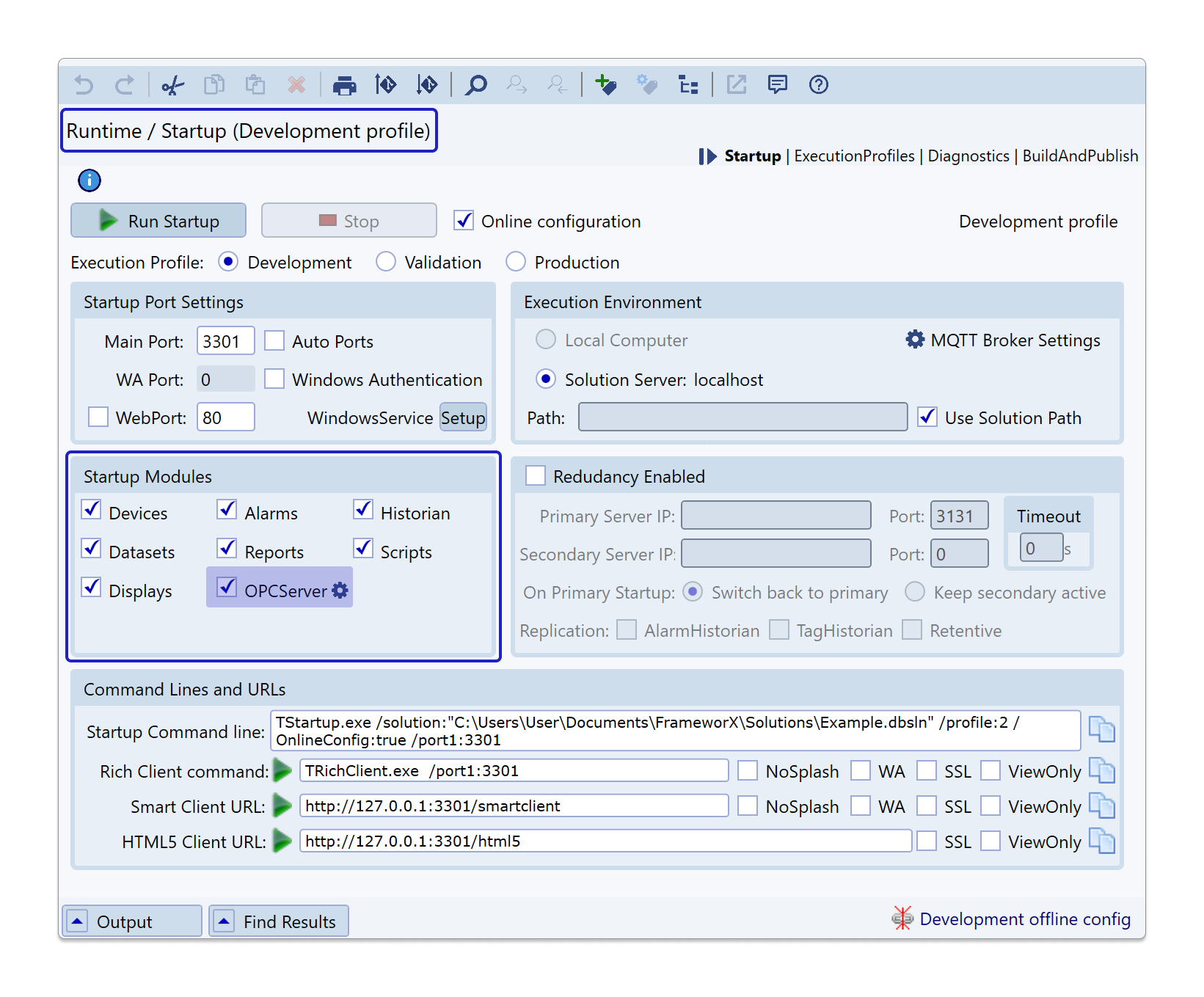
In the Engineering Environment, go to the Runtime → Startup page and look for the OPC Server configuration. Select the OPC UA, and click on icon to configure.
An OPC Server configuration dialog will open that will request admin privileges. In the configuration manager, we can configure Endpoint characteristics for the server, manage Client certificates, and create a certificate for the Server.
OPC DA Server is deprecated and kept only for compatibility purposes. If you still need to setup a OPC DA Server refer to this documentation: |
Endpoints
In this tab, you can define the endpoints for the OPC Server deployment, select security policies, and manage anonymous user login.
Clicking on the Add or Edit buttons will open a popup that allows the user to select the IP address and port number. It is also possible to define the IP for a specific network adapter that is available in the system. This can guarantee some security for your OPC, such as making it inaccessible to anyone outside of your network.
It is important to ensure the defined ports are not blocked by the OS firewall.
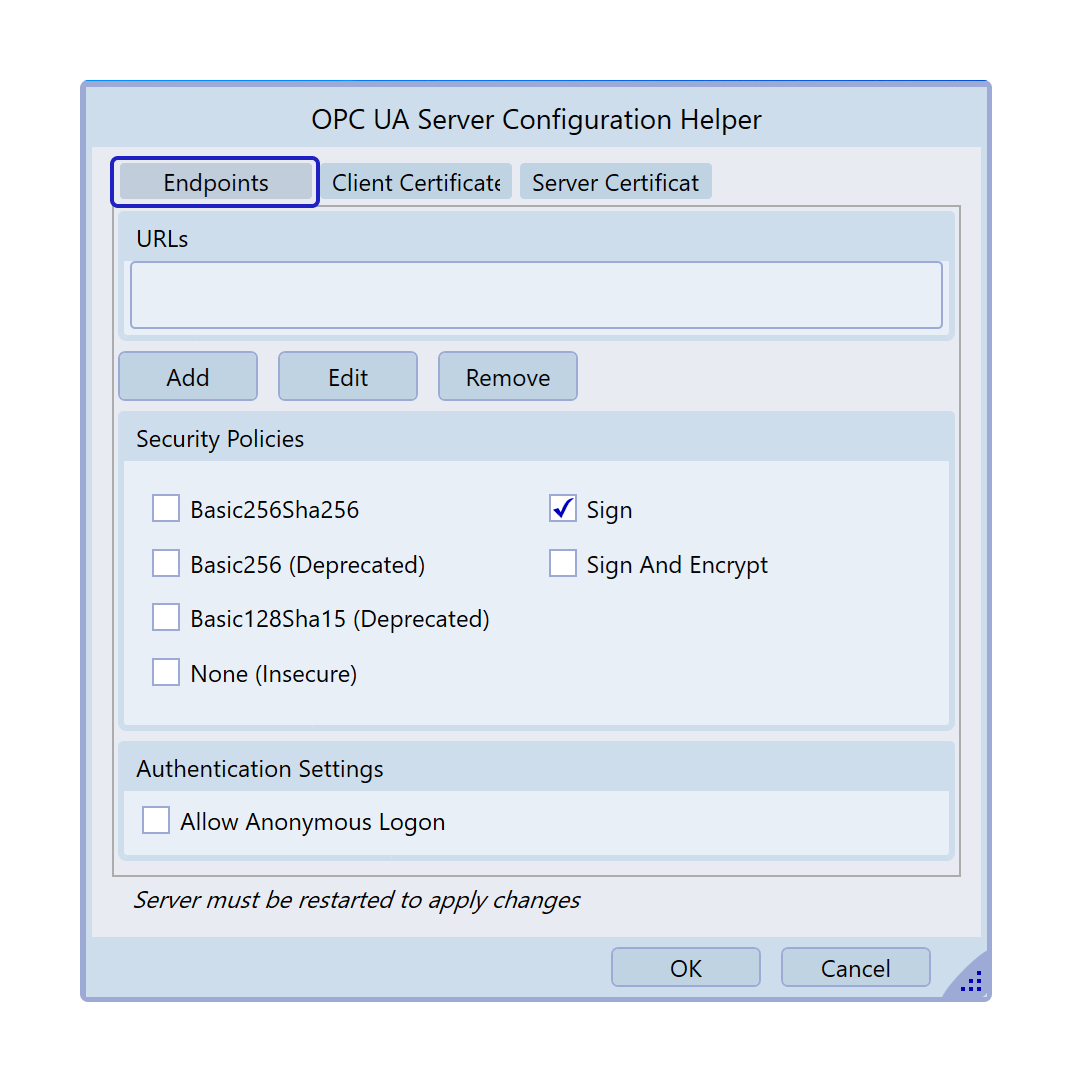
The OPC Server's user management is done by the Solution's Security Module. The existing Users and Runtime Users, and their associated passwords, can be used to allow client connection.
Client Certificates
In this tab, you can import Client Certificates and choose to Trust or Reject them.
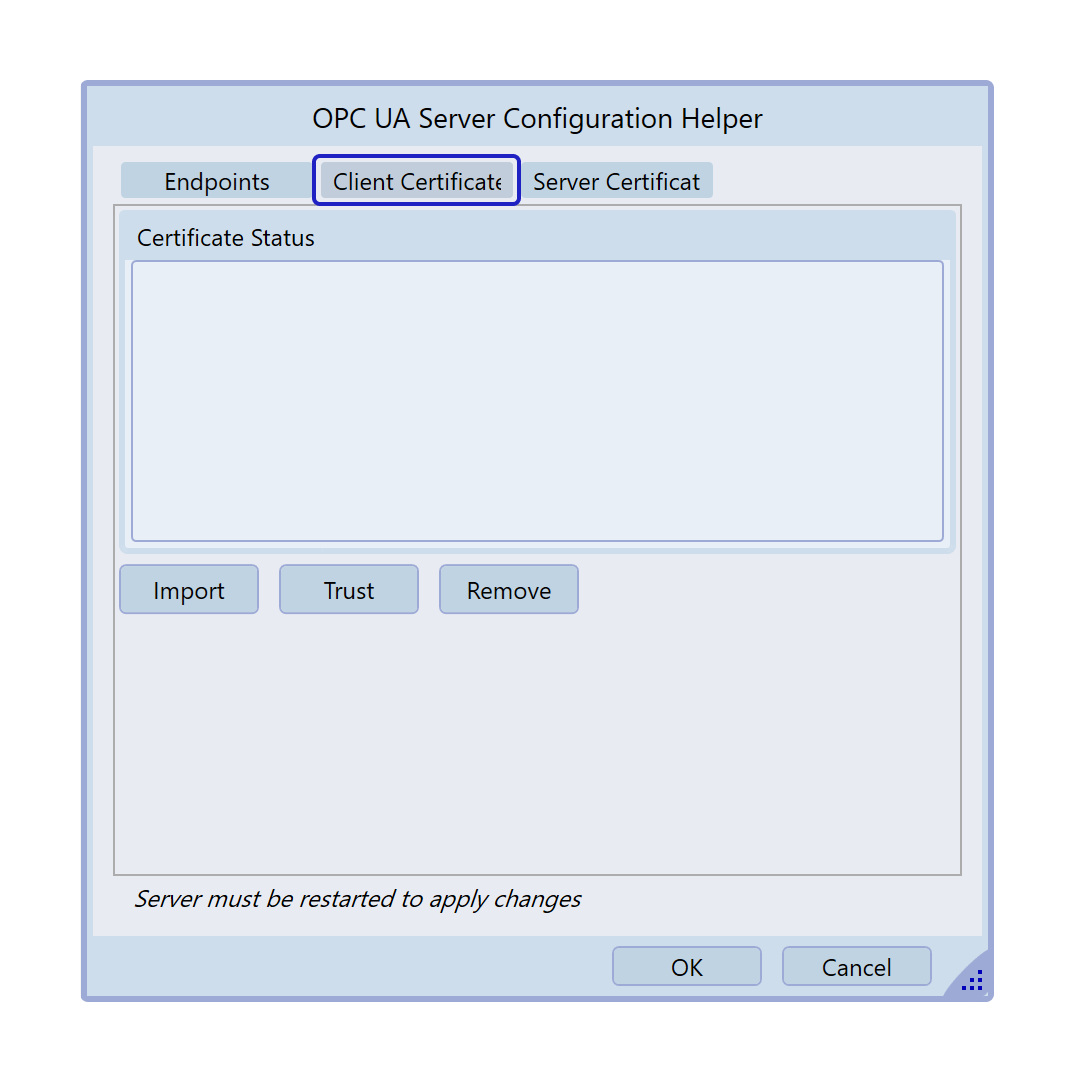
The list will display all Clients Certificates that were imported and their current trust status.
Remote Client Certificate Workflow
When a remote OPC UA client attempts its first secure connection to the server, the workflow is end-to-end as follows:
- The client opens a secure channel to the configured endpoint and presents its application instance certificate as part of the OPC UA handshake.
- The server receives the certificate, verifies the signature, and — if the certificate is not yet in the trusted store — rejects the connection and adds the certificate to the Untrusted tab of the Client Certificates list. The rejected client will retry per its own reconnect policy.
- The administrator opens the Client Certificates tab of the OPC Server configuration helper, selects the new entry under Untrusted, and clicks Trust. The certificate moves to the Trusted tab.
- On the client’s next reconnect attempt (or after a manual reconnect), the secure channel is accepted and the session establishes normally.
No restart of the OPC Server module is required between steps 3 and 4 — trust changes take effect on the next handshake. The same workflow applies to certificate renewal: a renewed client certificate appears as a fresh Untrusted entry until the administrator trusts it.
The Private visibility level continues to hide a tag from every OPC UA client, including locally trusted ones. Tags with Private visibility are never enumerated in the OPC Server address space and cannot be read or written through this connector. To expose a tag to OPC clients, switch its Visibility property to Protected (read-only) or Public (read/write). |
Server Certificate
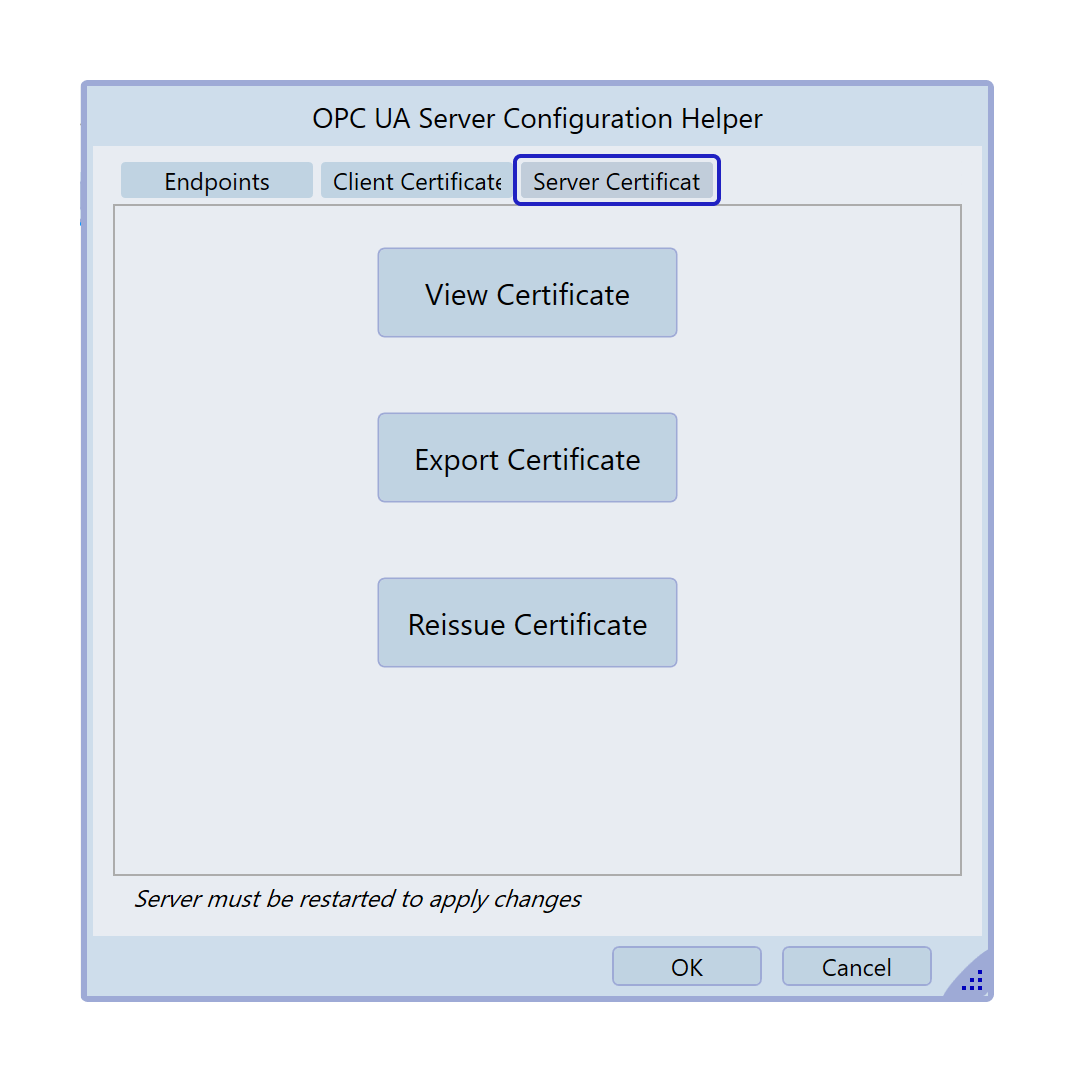
In this tab, you can view the details of the Server Certificate, export the file (to import and trust the OPC Client), and Reissue it.
When the Reissue option is selected, all existing trust relationships that depended on the Server Certificate will be invalidated.
Solution Runtime
Once all the configurations are done, you can launch the Solution to test the communication exchange. Remember to have the OPC Server Module enabled in Runtime → Startup.
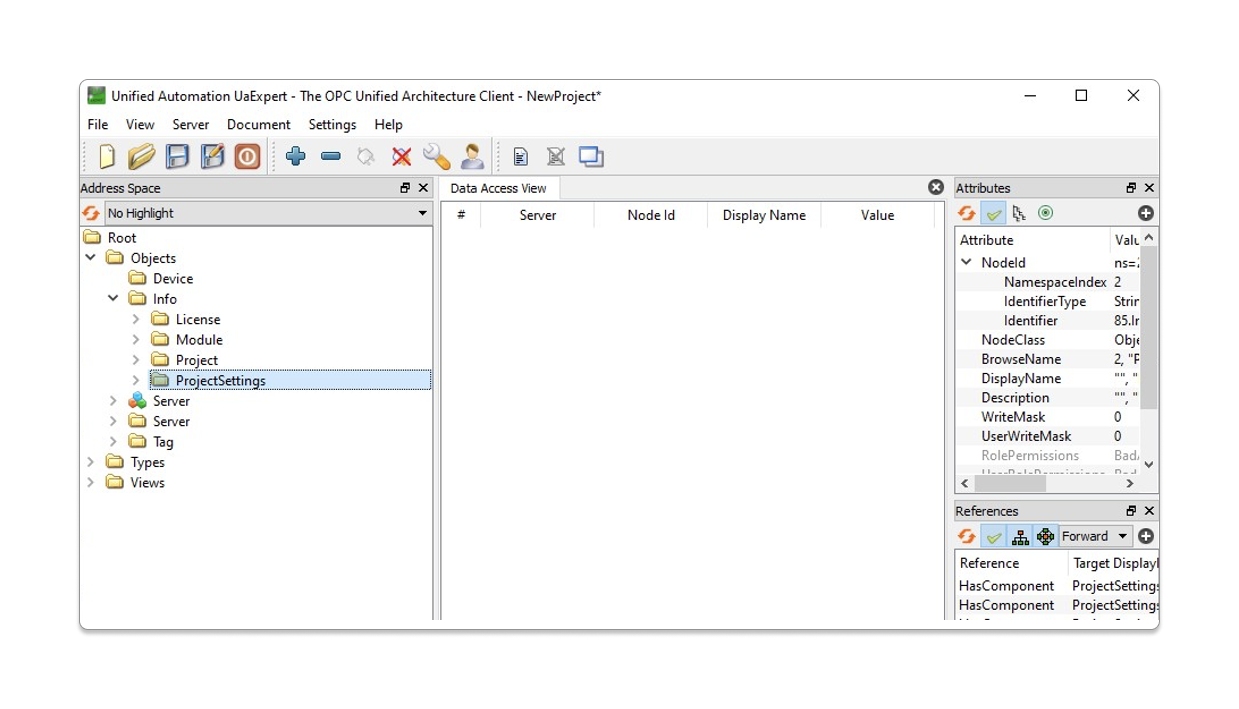
Open your OPC Client of choice (that is trusted by the OPC Server) and connect to the Endpoint defined to it. If all your configuration was done correctly, you should see the following Folders in the Server Address Space:
- Tag: Contains the Solution Tags with properties based on the Visibility (defined in Unified Namespace → Tags).
- Public: Can be read and write in your OPC
- Protected: Can only be read
- Private: will not be seen or browsed.
- Device: Information of the existing communication Nodes [Read-Only].
- Info: Contains the following subfolders:
- License: Details on the current license applied to the Solution Server [Read-Only].
- Module: Details on every Module of the Product (Alarms, Scripts, Report, etc) [Read-Only].
- Project: Solution information available at Solution Designer Home Page [Read-Only].
- ProjectSettings: Solution information available at Solution → Settings [Read-Only].
- Server: Information available at the Server Namespace (ComputerIP, PrimaryIP, IsRedundancyEnabled, etc) [Read-Only].
Troubleshooting
Server status can be monitored using the following Diagnostic tools:
- Trace Window: Enable the OPC Server and Debug CheckBoxes (in the settings menu) to visualize all information about this Module.
- Module Information: The following data should be visible here:
- State: Whether the Server is running, paused or stopped state.
- Available Items: Amount of variables in the Address Namespace.
- Last Error: Last error message that happened in the connection.
- Last Error Timestamp: Timestamp when the last error happened.
- OPC Clients Connected: Amount of clients connected to the Server.
- OPC Client: Individual information for each client connected (Name, Identity and Connection Time).
Driver Revision History
OPCUA Server Revision History | |
|---|---|
Version | Notes |
1.0.0.1 | 10.1.5 release. Clarified Private Tag Visibility behavior (Private tags are never enumerated in the OPC Server address space). Documented the end-to-end Remote Client Certificate Workflow: first secure-channel handshake rejects an unknown client certificate into the Untrusted tab; administrator clicks Trust; the next client reconnect establishes normally without restarting the OPC Server module. |
1.0.0.0 | Initial release on new documentation standards. |