Apply and manage licenses.
Reference → Installation → Folders | Licensing | Updates | SecureGateway | Web Server
Activation Methods
Online Activation
- Open Solution Center → Your License
- Click Activate in Online Activation
- Enter SerialNumber and ActivationCode
- Confirmation appears immediately
Requirements: Internet connection to license server
Offline Activation
For air-gapped systems, in Solution Center → Your License:
- Generate Request
- Click "Get Site Code"
- Save .txt file with machine fingerprint
- Send this .txt file to Tatsoft sales team
- Process Request
- Contact Tatsoft sales team
- Send them this .txt obatained in the last section
- Apply License
- You will receive a license key back (.txt file)
- Load this file in Load license key
Hardware Dongle
- Insert USB dongle
- Wait for driver installation (automatic on Windows 10+)
- License auto-detected
- Transfer between systems by moving dongle
License Server Setup
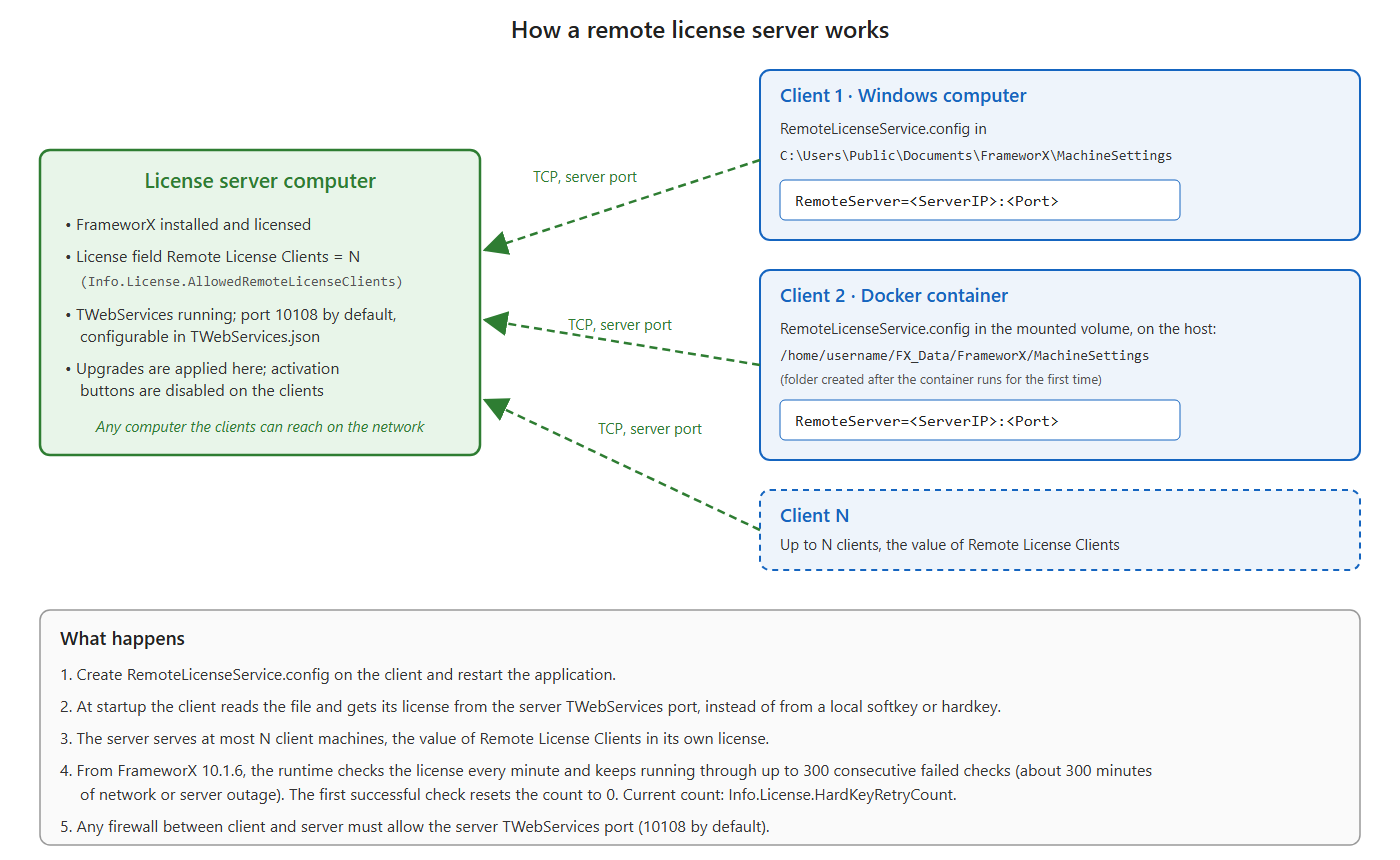
Server Configuration:
The Server computer must have the software platform installed and licensed.
- The software must have applied license for the remote license server allowing a field higher than 1.
- Start TWebService on port 10108
Client Configuration:
- Create
RemoteLicenseService.config:
RemoteServer=<ServerIP>:10108- Place in
C:\Users\Public\Documents\FrameworX\MachineSettings - Restart application
License server outage: From FrameworX 10.1.6, a runtime licensed from a remote license server checks the license every minute and keeps running through up to 300 consecutive failed checks, about 300 minutes of network or license server outage. The first successful check after the outage resets the count to 0. The property Info.License.HardKeyRetryCount shows the current count of failed checks. Runtimes with a local license (softkey or hardkey) behave as before.
License Upgrade
When you buy an upgrade for an existing license (more I/O, another edition, more clients), Tatsoft records it on the license server for your serial number. How you apply it depends on how the computer was activated.
Online Upgrade
For a computer activated online with an activation code. You do not need a new code.
- Open Solution Center → Your License.
- Wait a few seconds while the page checks the license server, or click the refresh icon. When an upgrade is waiting, the button in Online Activation reads Upgrade and is enabled.
- Click Upgrade. The SerialNumber and ActivationCode are already filled in.
- Click Upgrade in the dialog. The new license is applied and a confirmation appears.
If the button reads Upgrade but stays disabled, no upgrade is waiting for your serial number yet. Requirements: Internet connection to the license server.
Other Cases
- Offline computer: follow the Offline Activation steps above. Generate a new Site Code, send it to Tatsoft, and load the license key you receive.
- Hardware dongle: keep the dongle connected and follow the Offline Activation steps.
- Remote license server: apply the upgrade on the license server computer. The activation buttons are disabled on client computers, which get their license from the server.
License Information
Access via Solution Center → Help → License. The page shows the license identity, expiration, and the capacity limits granted by the license:
| Field | Description | Example |
|---|---|---|
| Product Edition | FrameworX edition and I/O | FrameworX 1500 I/O |
| License Type | Runtime | Runtime |
| Serial Number | Unique identifier | 12345 |
| Expiration | End date if applicable | 2025-12-31 |
| Hardkey Status | Dongle detection | Present/Absent |
| Concurrent Users | Maximum number of display clients (Rich Client, Smart Client, and HTML5 Web Client) that can be connected to the runtime at the same time. All display client types count toward this same limit. | 5 |
| Engineering Users | Maximum number of users who can edit the same solution concurrently in Designer. | 100 |
| Remote License Clients | Number of client machines that can obtain a license from this computer when it acts as a remote license server. | 5 |
| Tag Elements | Maximum number of licensed tag elements (external communication points bound to tags). Local tags are always unlimited. | Unlimited |
| Devices | Maximum number of communication devices the license allows. | 256 |
| Subscription Type | Licensing and renewal model. | Perpetual |
Property Watch Equivalents
The same capacity limits are exposed at runtime under the Info.License object (visible in Property Watch). The Solution Center label and the runtime property refer to the same value:
| Solution Center label | Info.License property |
|---|---|
| Concurrent Users | Info.License.AllowedRichClients |
| Remote License Clients | Info.License.AllowedRemoteLicenseClients |
| Engineering Users | Info.License.AllowedEngineeringUsers |
License Expiration Warnings
From FrameworX 10.1.6, display clients warn operators about license expiration only in the final week:
| Time before expiration | Operators see | Audit trail records |
|---|---|---|
| More than 7 days, up to 30 days | No warning | One System Warnings entry per client session: License expires: <date>. Please contact your software vendor. |
| 7 days or less | A message box in every client type (Rich Client, Smart Client and HTML5 client): Your license will expire: <date>. It appears at client startup and again at each step: 7 days, 3 days, 1 day, 12 hours and 6 hours before expiration, at most once per session for each step. | The same warning, as a System Warnings entry |
| Maintenance plan expiring within 30 days | No warning | Maintenance plan expires: <date>. Please contact your software vendor. |
The clients run this check from 08:00 to 17:59 local time. The audit trail entries need Enable Audit Trail and System Warnings checked in Alarms → Global Settings. The expiration date is also available at runtime in Info.License.ExpirationDate.
In 10.1.5, every client session shows the license expiration warning to operators, including maintenance plan dates. From 10.1.6, operators see the warning only in the final week before the license expires. To plan renewals earlier, enable System Warnings in the audit trail and review it, or monitor |
License Transfer
Computer to Computer
- Generate SiteCode from original computer
- Contact vendor for temporary license
- Install temporary (frees permanent)
- Generate SiteCode from new computer
- Receive permanent license for new computer
- Install on new computer
Virtual Machine Considerations
Maintain consistent VM configuration:
- Network adapters
- CPU configuration
- Memory allocation
- Storage devices
Best Practice: Snapshot VM after licensing
Troubleshooting
| Issue | Cause | Solution |
|---|---|---|
| Invalid license key | Typing error | Check O/0, I/1 confusion |
| Activation fails | Network blocked | Use offline activation |
| License expired | Time-limited | Renew license |
| Feature not available | Wrong license type | Upgrade license |
| Dongle not detected | Driver issue | Reinstall drivers |
| VM license invalid | Hardware changed | Maintain VM configuration |
| Network license fails | Connection issue | Verify server IP and port |
| Error applying license: Invalid LicenseKey Access | Security permisson | Execute TWebServices.dll as administrator |
License Files
| File | Location | Purpose |
|---|---|---|
| SiteCode.txt | User-defined | Request file with machine ID |
| LicenseKey.lic | User-defined | License certificate |
| RemoteLicenseService.config | MachineSettings folder | Network license configuration |
Best Practices Checklist
- Document serial numbers and expiration dates
- Plan renewals 30 days ahead
- Test restore procedures for VMs
- Monitor floating license usage